Build Tutorial
Based on Fagundes, M.A.R., Mendonça-Tinti, I., Iescheck, A.L. et al. An open-source low-cost sensor for SNR-based GNSS reflectometry: design and long-term validation towards sea-level altimetry. GPS Solut 25, 73 (2021). https://doi.org/10.1007/s10291-021-01087-1
Contributors
This project was developed by the following contributors:
Parts
The parts list can be found here.
1. Preparing Arduino
This chapter will guide you through the process of setting up the Arduino MKR NB 1500 and changing the GPS output rate.
You will need:
Arduino MKR NB 1500
SD Card
1.1. Arduino IDE Setup
Start by downloading the Arduino IDE available at the arduino website here.
The first thing to do is install the board group from the Board Manager. To do this click the second icon in the sidebar and search for "Arduino SAMD". The board group you want to install is called "Arduino SAMD Boards (32-bits ARM Cortex-M0+)", install the latest version of this. 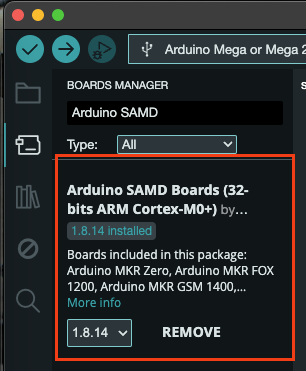
You can then install the libraries that we will need for this project. We will need the SD library which handles communication with the SD Card. To do this click the library icon below the boards manager and search for SD and install it. 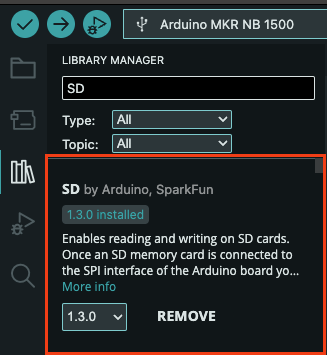
1.2. Format the SD Card
Before you can use the SD card with the Arduino you will need to format it. The link below has instructions on how to do this for both Windows and macOS. Ensure that the SD card is formatted as FAT32 (just FAT if you are using macOS) so that the Arduino can read it. Garmin support article on formatting SD cards
1.3. Get the firmware
Now that we have the board group and library installed we can upload the firmware to the Arduino. To do this create a new sketch and copy the code found in the main.cpp file here into the sketch. You will also need to copy or download the files dropbox.cpp, dropbox.h, main.h and arduino_secrets.h.example (see note below) into their own files as well. You can do this by copying the file in GitHub, then click the three dots near the top right of the Arduino IDE and select "New File". Name the file the same as the one you copied. Do this for all three files.
1.4. Change GPS Output Rate
The GPS module will output data at a rate of 1Hz by default. This will create a massive amount of data that is not needed for this project. Therefore, we will need to change this output rate to 0.2Hz (5 seconds). To do this you will need a Windows computer with the u-center 2.0 software installed.
Open u-Center connect the GPS module, if you are using the Sparkfun NEO-M9N from the parts list you can do this by plugging a USB-C cable into the GPS module and then into your computer. Then click the "devices" icon and then the plus button.
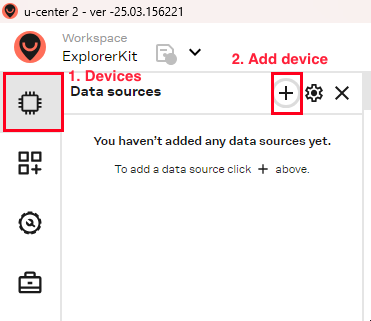
Then select the COM port that the GPS module is connected to and click "Connect". If everything is working correctly and you GPS module has a FIX on some satellites you should see a screen like this:
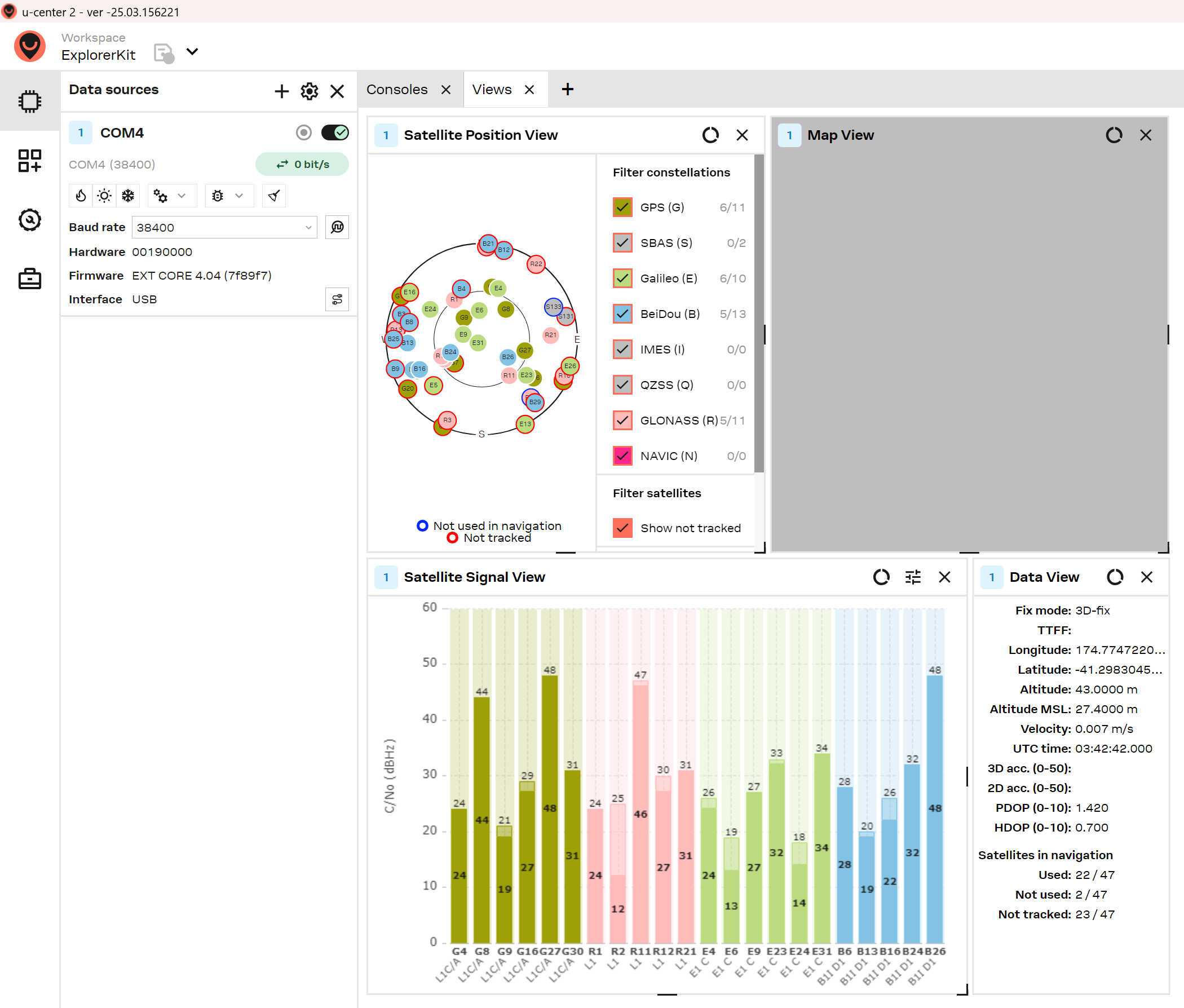
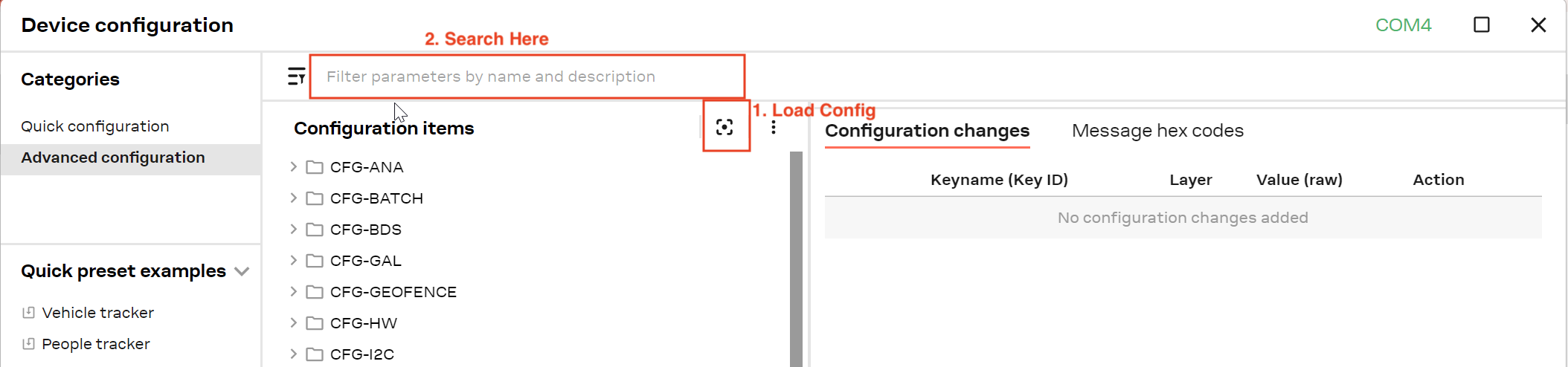
This screen shows all the parsed raw data that is collected from the GPS module. Now click the settings button beside the plus icon you used to add the module. In the window that opens click the button indicated below to load in the current module configuration, then search for "CFG-RATE" in the search bar.
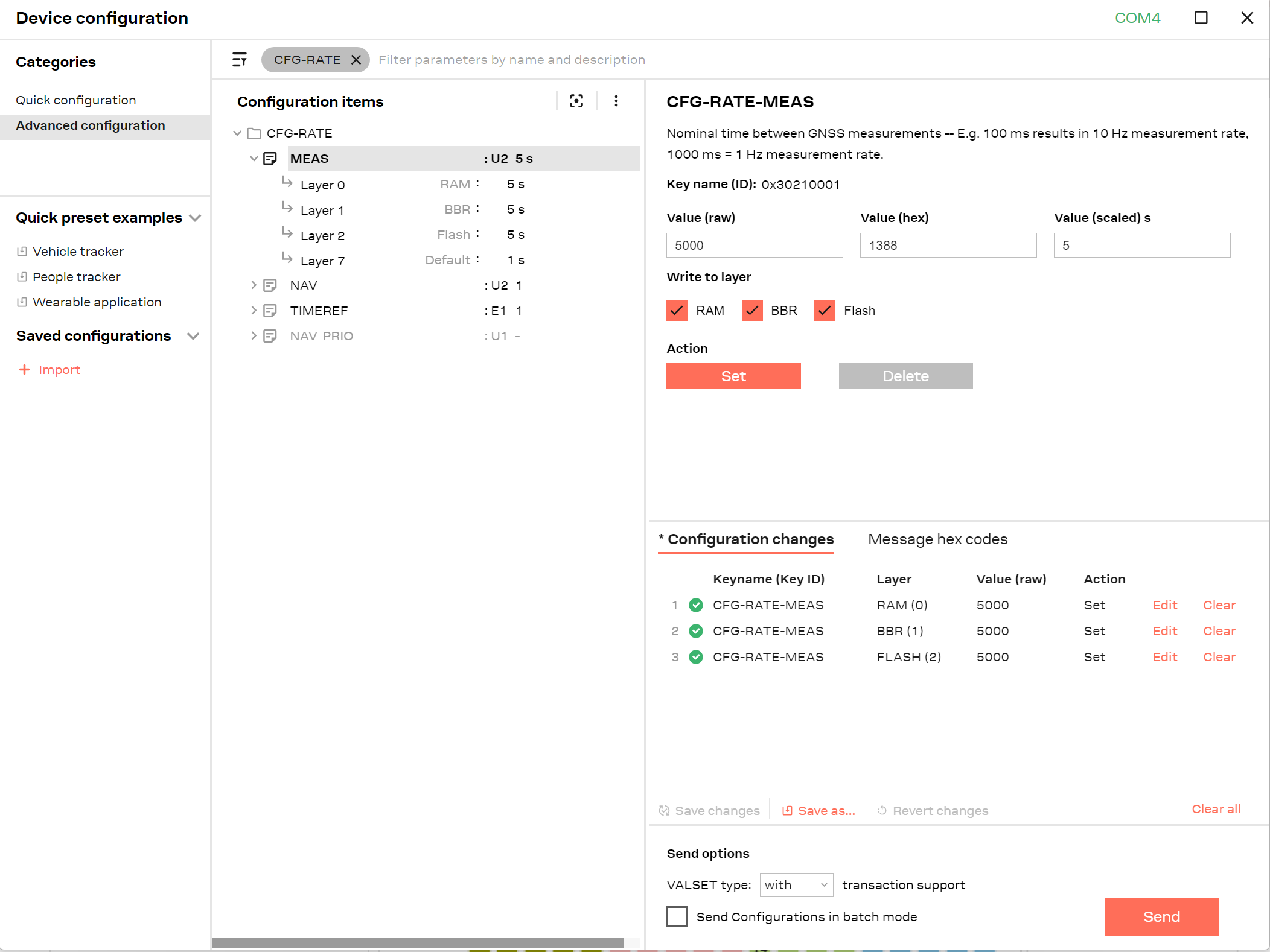
Now click "CFG-RATE" in the list, this will bring up the settings panel on the side, under "Value (scaled) s" change the value to 5 then tick the boxes for "RAM", "BBR" and "Flash" to save the settings to the module's RAM, BBR and Flash memory. Then click the "Send" button to send the new settings to the module. If everything has updated you should see 3 green ticks beside the 3 rows in the table.
You can now close out of u-Center and unplug the GPS module.
1.5. Upload the Firmware
Now plug the Arduino into your computer and select the board from the board selector beside the upload button. It should be indicated as "Arduino MKR NB 1500". Then click the upload button (the right arrow icon) to upload the code to the Arduino.
1.6. C++ Definitions
At the top of the file below the #include directives you will see some definitions that you can change if you have different configs
#define GPS_BAUD 38400- default baud rate for the u-Blox NEO-M9N GPS module, only change if using a different module#define SERIAL_BAUD 9600- baud rate for the serial monitor, only change if you want to change the speed of the serial monitor.#define IDLE_THRESHOLD 10- threshold for no output from the GPS module to be considered "idle". In milliseconds.#define SDCard 4- SD card chip select PIN, only change if not using the MKR SD Shield.#define WAIT_FOR_VALID_GPS- comment out if you want to start recording data immediately, even if the GPS module is not ready.#define MAX_BASENAME_LEN (8+1)- maximum length of the basename of the log files.#define MAX_FILENAME_LEN (MAX_BASENAME_LEN + 1 +3)- maximum length of the log file name including extension#define DEBUG- comment out if you want to disable debug messages, recommend to comment out when confirmed working.#define GPS_BUFFER_SIZE_TYPICAL 512- typical size of the GPS NMEA, used for buffer pre-allocation
2. Connecting the Electronics
In this chapter we will guide you through the process of connecting the Arduino, SD Shield and GPS Module together. As well as how to set up the cellular connection and the power system.
2.1. Connecting the Arduino and SD Shield
You will need
Arduino MKR NB 1500
Arduino MKR SD Shield
Micro SD Card
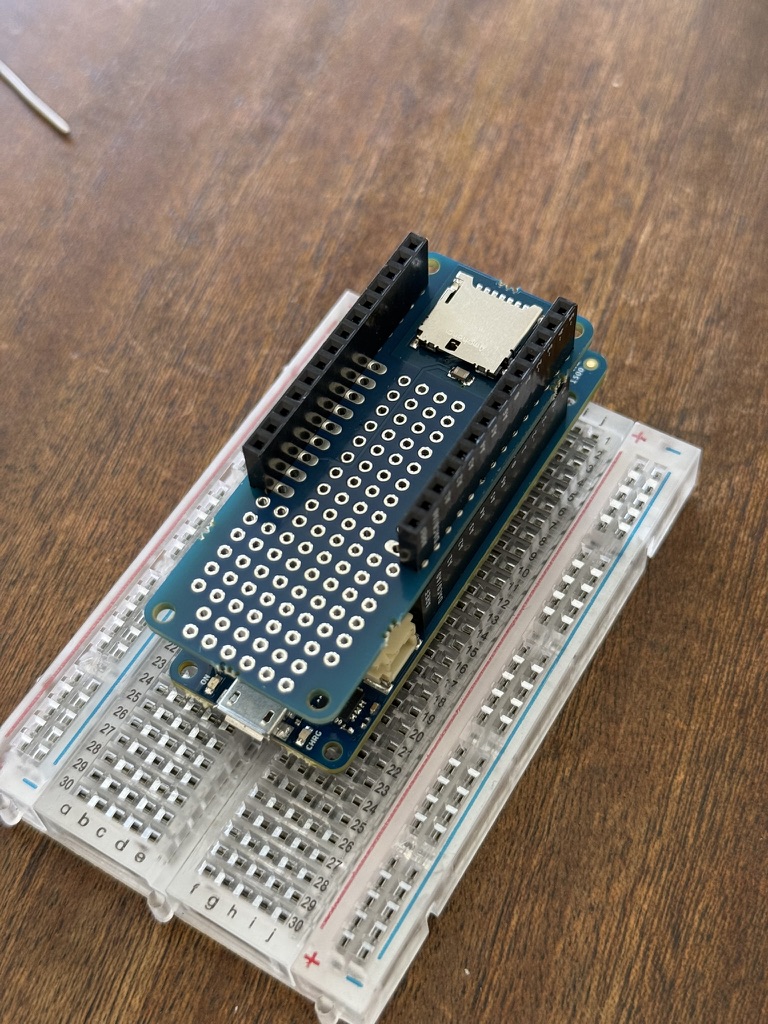
Start by plugging the SD Shield into the Arduino. To do this simply line the pins up on the SD shield to the pins on the NB 1500 and push them together. The labels should line up between the two boards, e.g. 5V to 5V. As a general guide the SD card slot should face away from the Micro USB port on the arduino. If you have your SD card formatted then now is the time to insert the SD card into the slot.
2.2. Connecting the Arduino and GPS Module
You will need
Sparkfun NEO-M9N
Header Pins
Breadboard
Arduino MKR NB 1500
Jumper Wires
GNSS Antenna
To connect the GPS module to the Arduino you will first need to solder the header pins to the GPS module. To do this cut the header pins to the correct length and solder them to the GPS module. The pins should be soldered to the empty row that is on the USB port side of the PCB. Then put the header pins into the breadboard so that the longer side of the pings goes into the breadboard, then place the GPS module on top of the header pins and solder to the board.
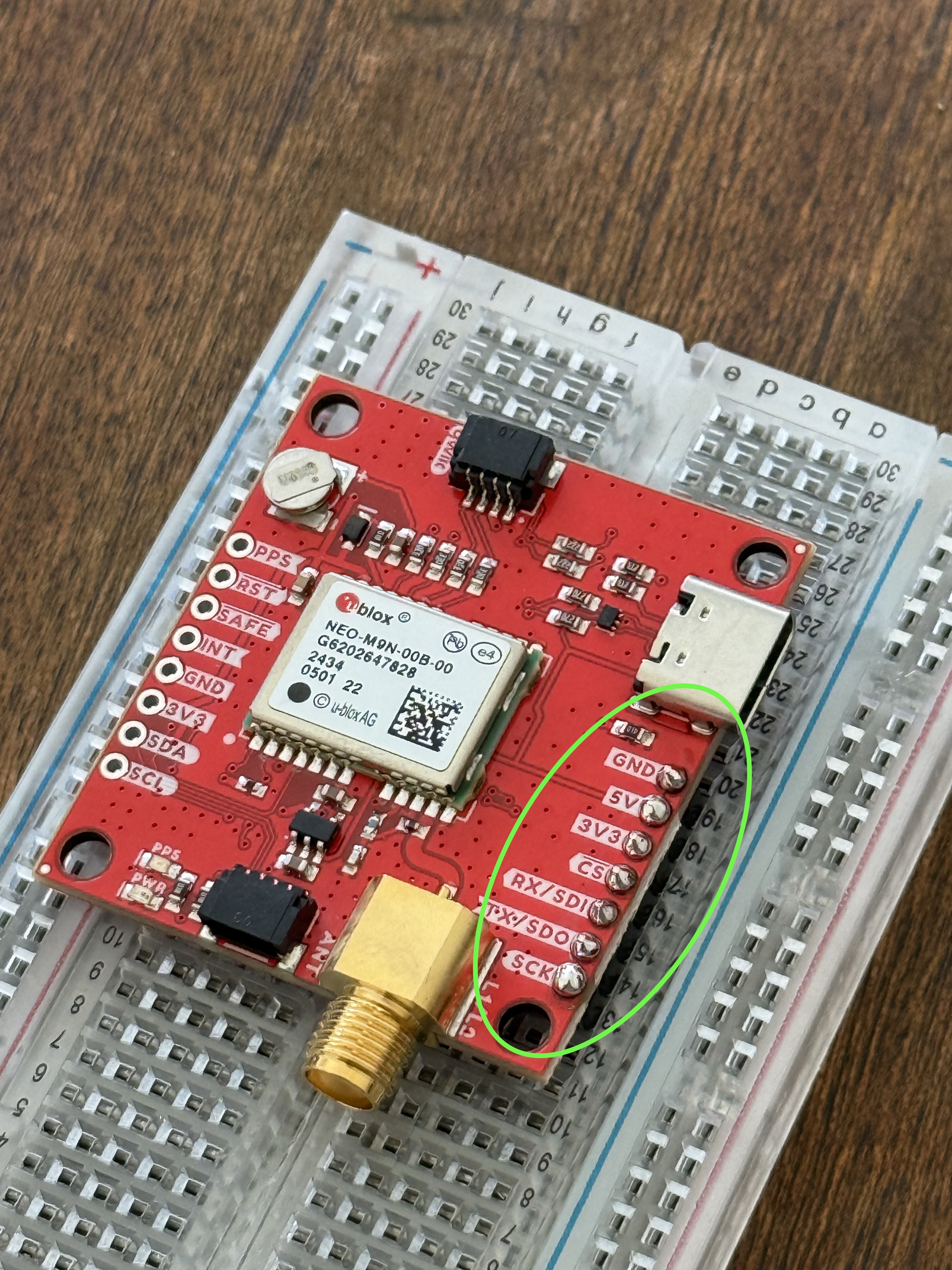
Once it has been soldered you can plug the GPS module and Arduino into the breadboard. Place the Arduino at one end of the breadboard and the GPS module at the other end.
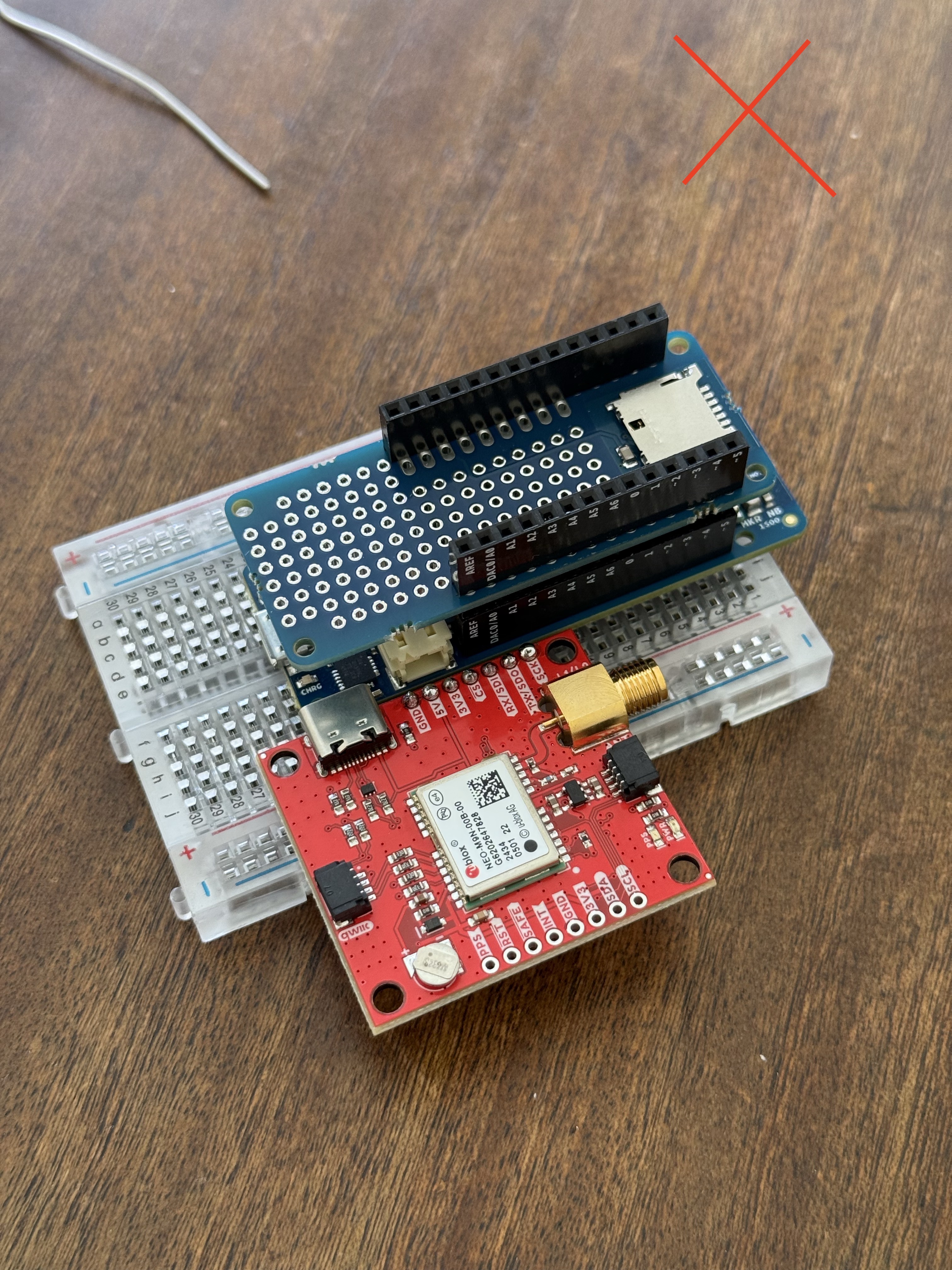 | 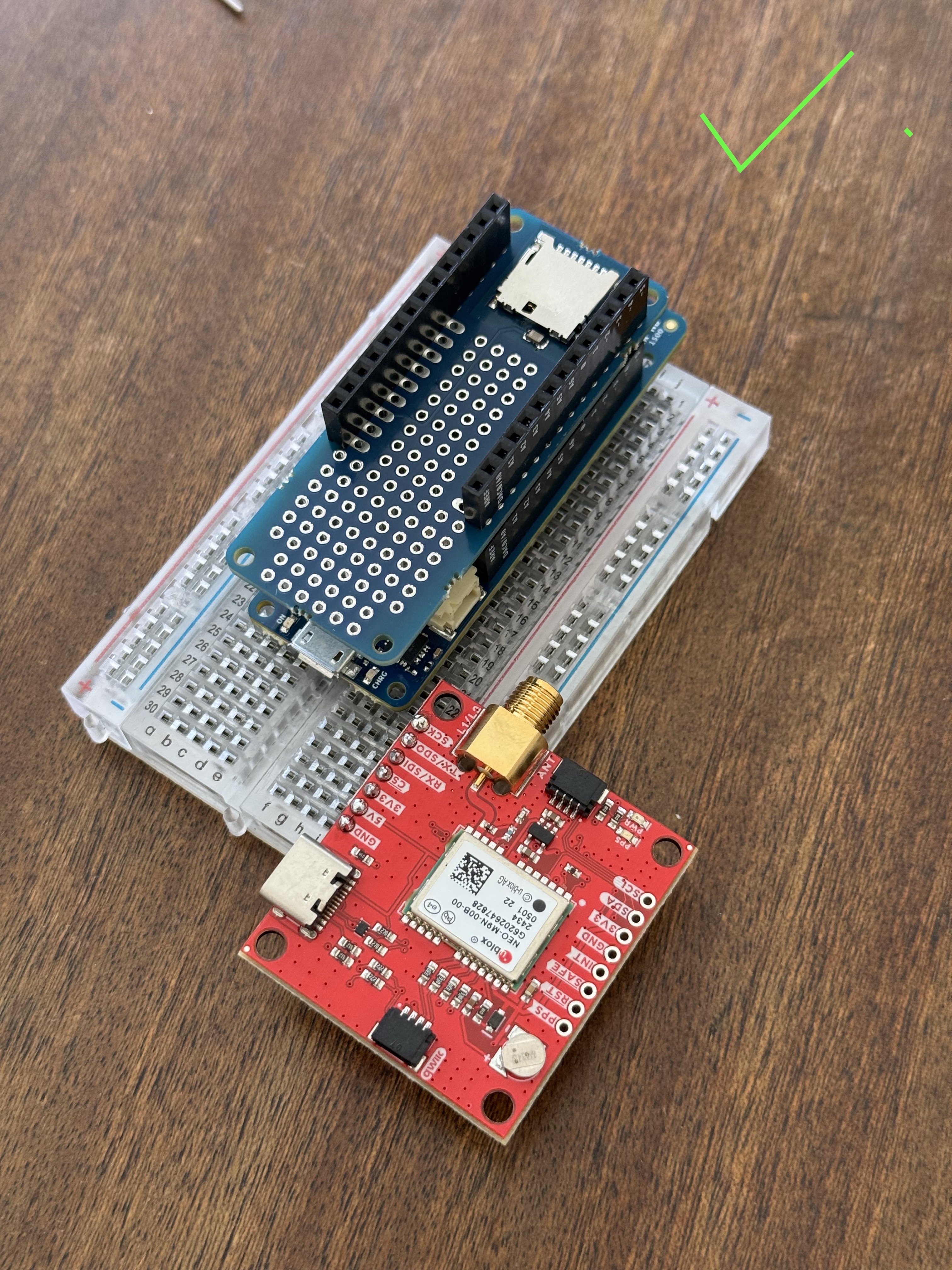 |
|---|---|
Example of bad placement of the board and GPS Module. | Example of good placement of the board and GPS module. |
You can now connect the two using jumper wires and the following connection list
GPS Module VCC -> Arduino 3.3V
GPS Module GND -> Arduino GND
GPS Module RX -> Arduino TX
GPS Module TX -> Arduino RX
3. Power System
In this section we will guide you through the process of preparing the solar panel and battery system to power the Arduino.
3.1. Preparing the Solar Panels
You will need
Solar Panels
2x Screw Terminal Blocks
Wire Stripper
Screwdriver
Start by connecting the two solar panels together. To do this simply connect one of the wires from one panel to the other. They are keyed so that you can only connect positive to negative. 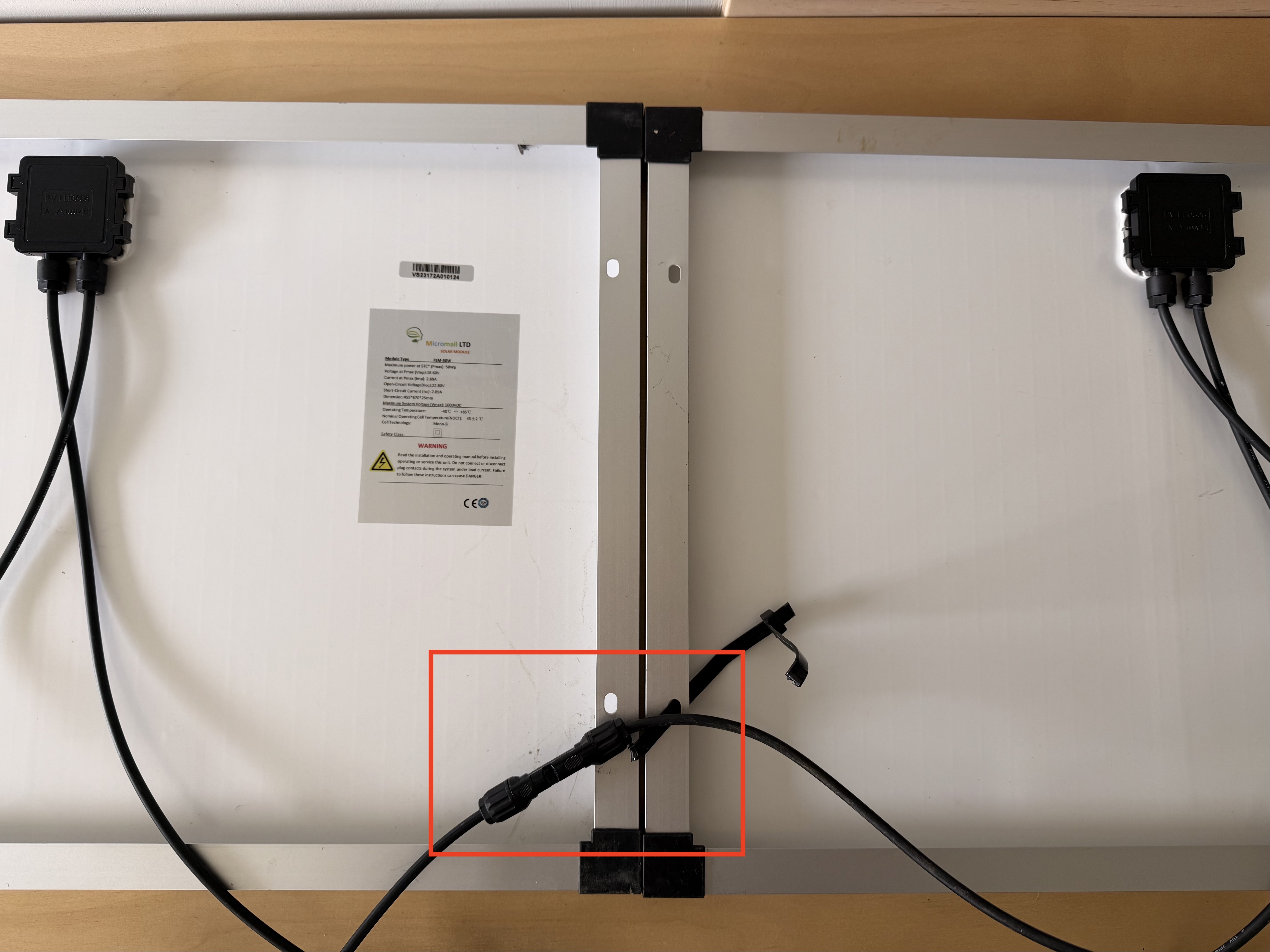
Once they are connected you can now connect the screw terminal blocks to the wires. To do this strip about 10mm of insulation off the end of each wire using the wire stripper. Then loosen the screws on the terminal block and insert the wires into the holes. Finally tighten the screws to secure the wires in place. 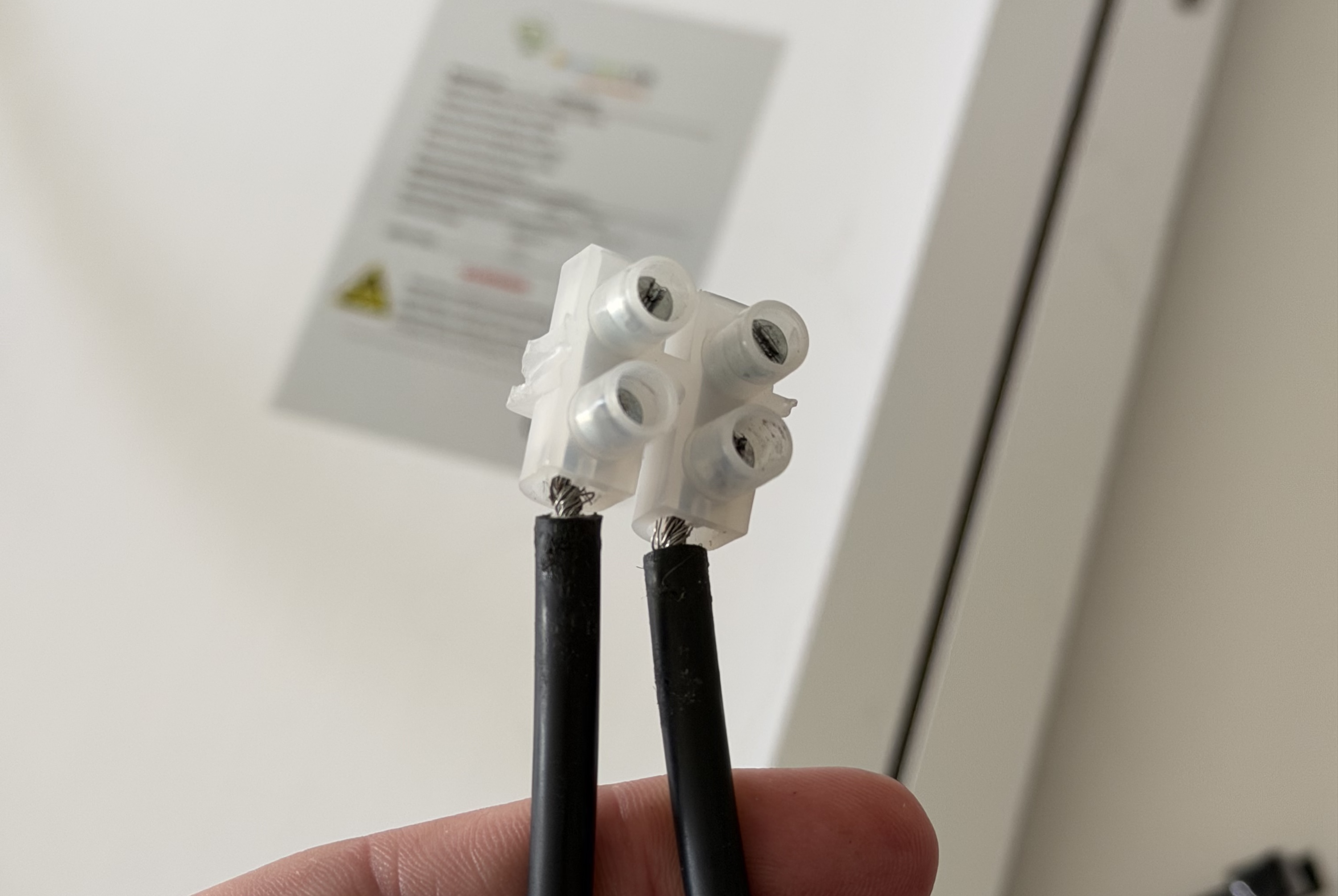
3.2. Preparing the Battery System
You will need
Prepared Solar Panels
12V/24V solar panel charge controller
2x 12V batteries
Multimeter
12AWG wire
4x stainless steel bolts
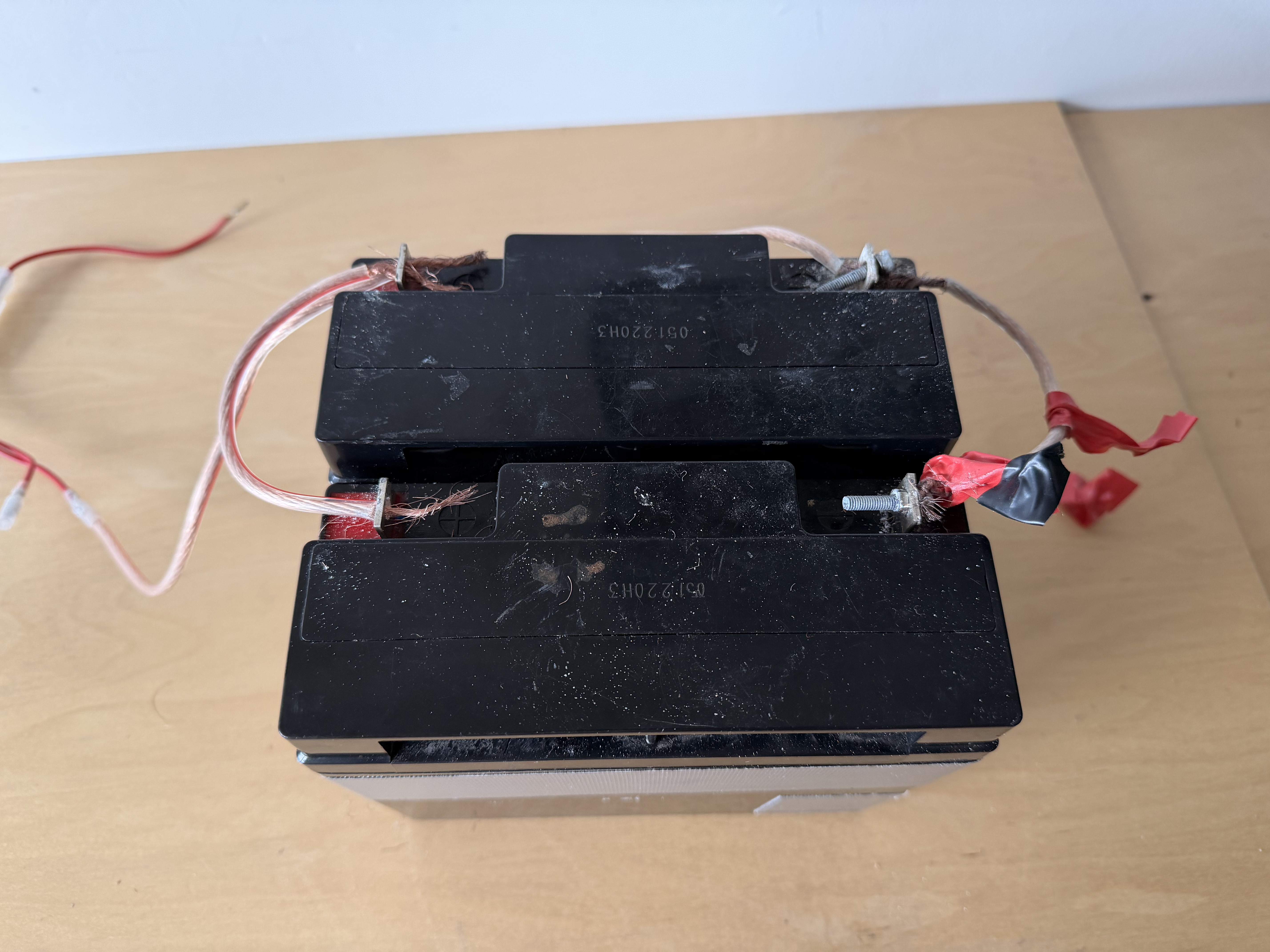
We need to connect the batteries in parallel to increase the capacity of the battery system. To do this connect the positive terminal of one battery to the positive terminal of the other battery using a length of 12AWG wire. Then do the same for the negative terminals. The best way to do this is to cut a length of wire that will reach between the two batteries and to the solar charge controller. Then strip the wire and connect to the first battery terminal, then run the wire through the hole on the second battery terminal and strip the insulation where the wire meets the terminal. Then run the rest of the wire to the solar charge controller. Use the stainless steel bolts to connect the wires to the battery terminals securely.
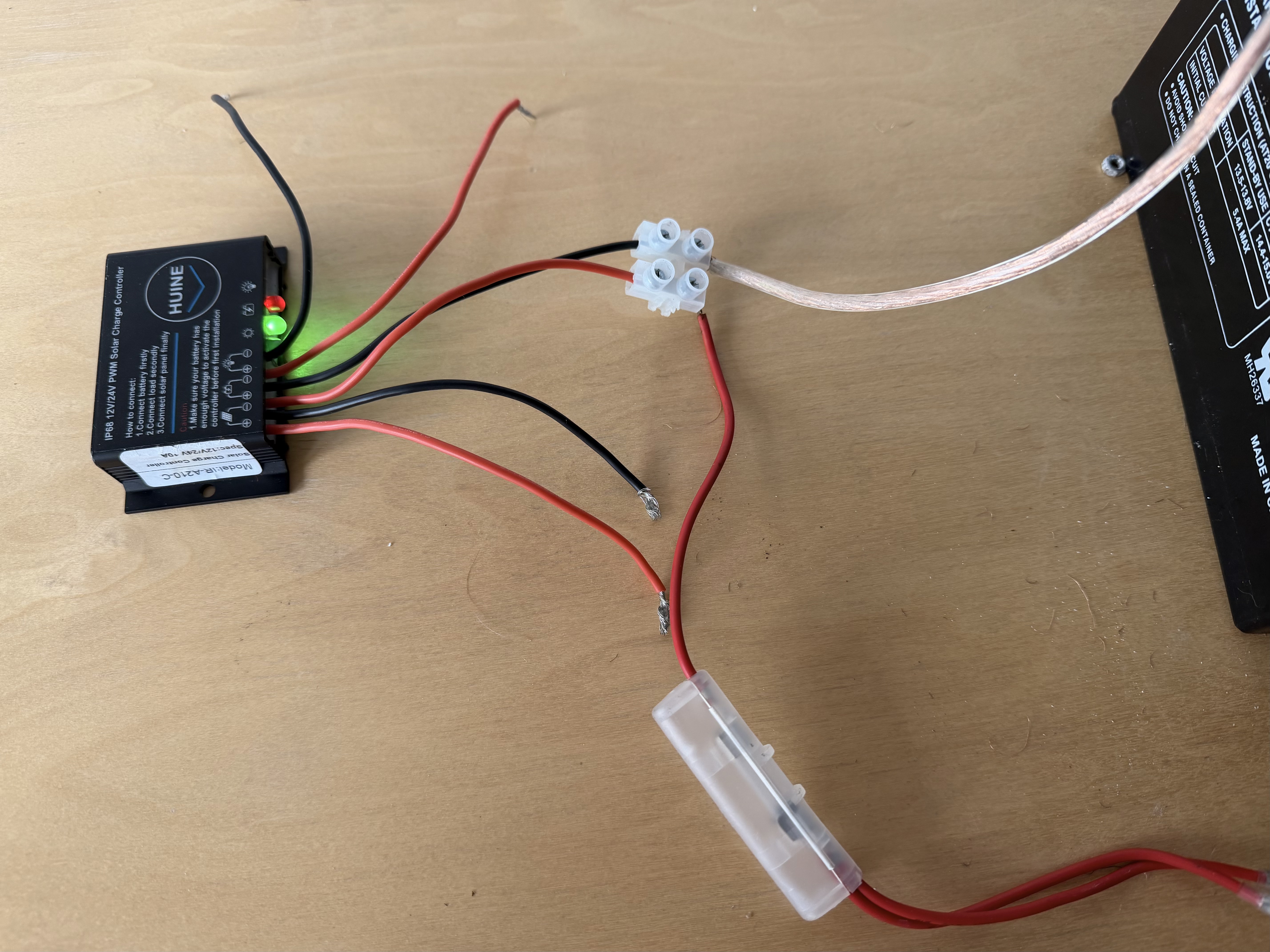
Next connect the battery's to the charge controller. In the case of the charge controller in the parts list you just need to connect the positive terminal of the battery to the positive battery terminal on the charge controller, and the negative terminal of the battery system to the negative battery terminal on the charge controller. Use the terminal screw blocks to connect them.
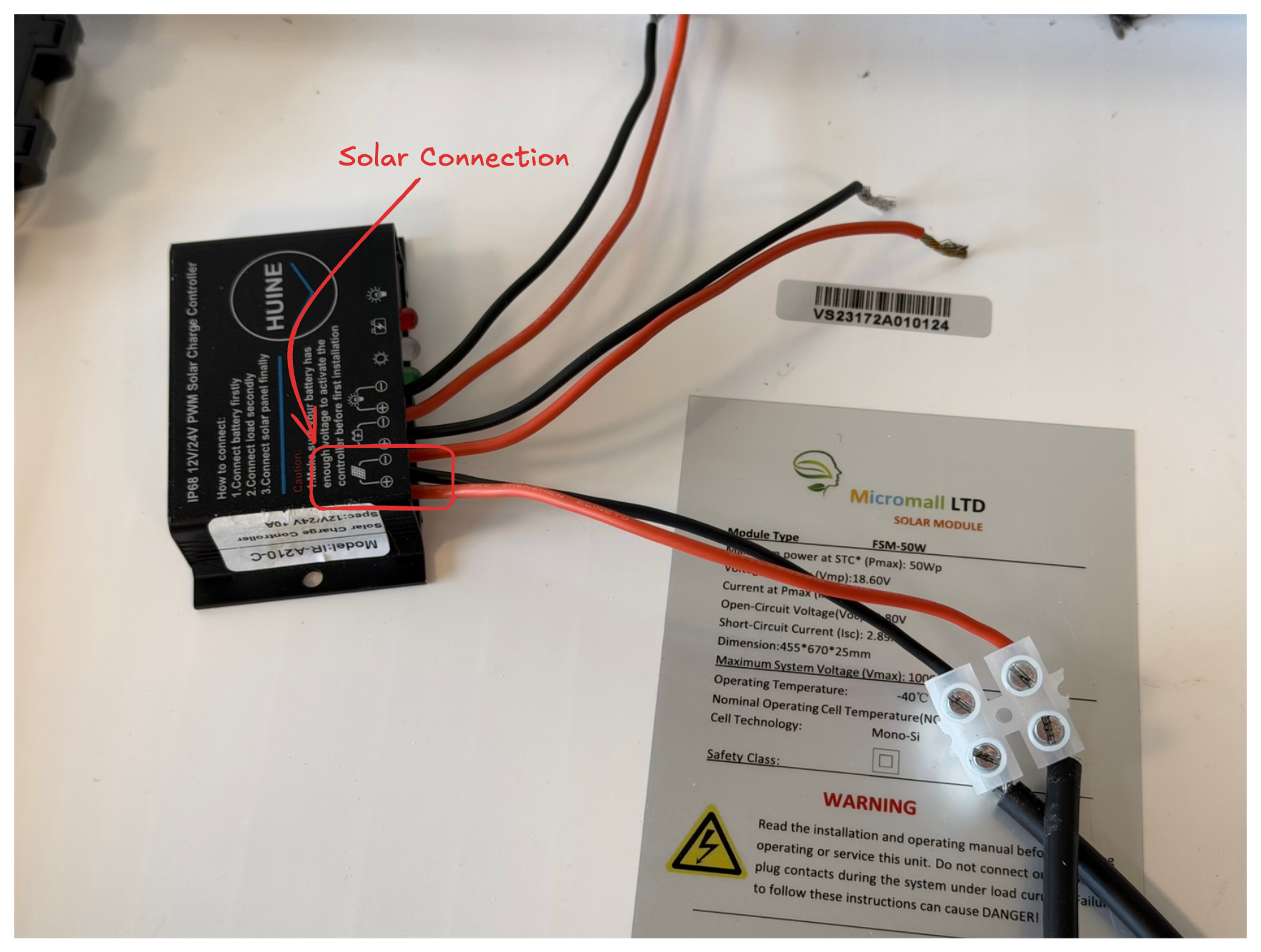
Now we can connect the solar panels to the charge controller. First use a multimeter to find out which wire is positive and negative. You will need to set the multimeter to read DC voltage, then place the red probe on one wire and the black probe on the other. If they are around the correct way you will see a positive voltage readout.
Once you have identified the positive and negative wires you can connect them to the charge controller the same way as the battery.
On the recommended solar controller, the solar panel terminals are to the left of the battery terminals.
3.3. Connect the Arduino Power
You will need
Micro USB Cable
Wire Strippers
Screw Driver
Prepared solar/battery system
Screw Terminal Blocks
Multi-voltage Adaptor
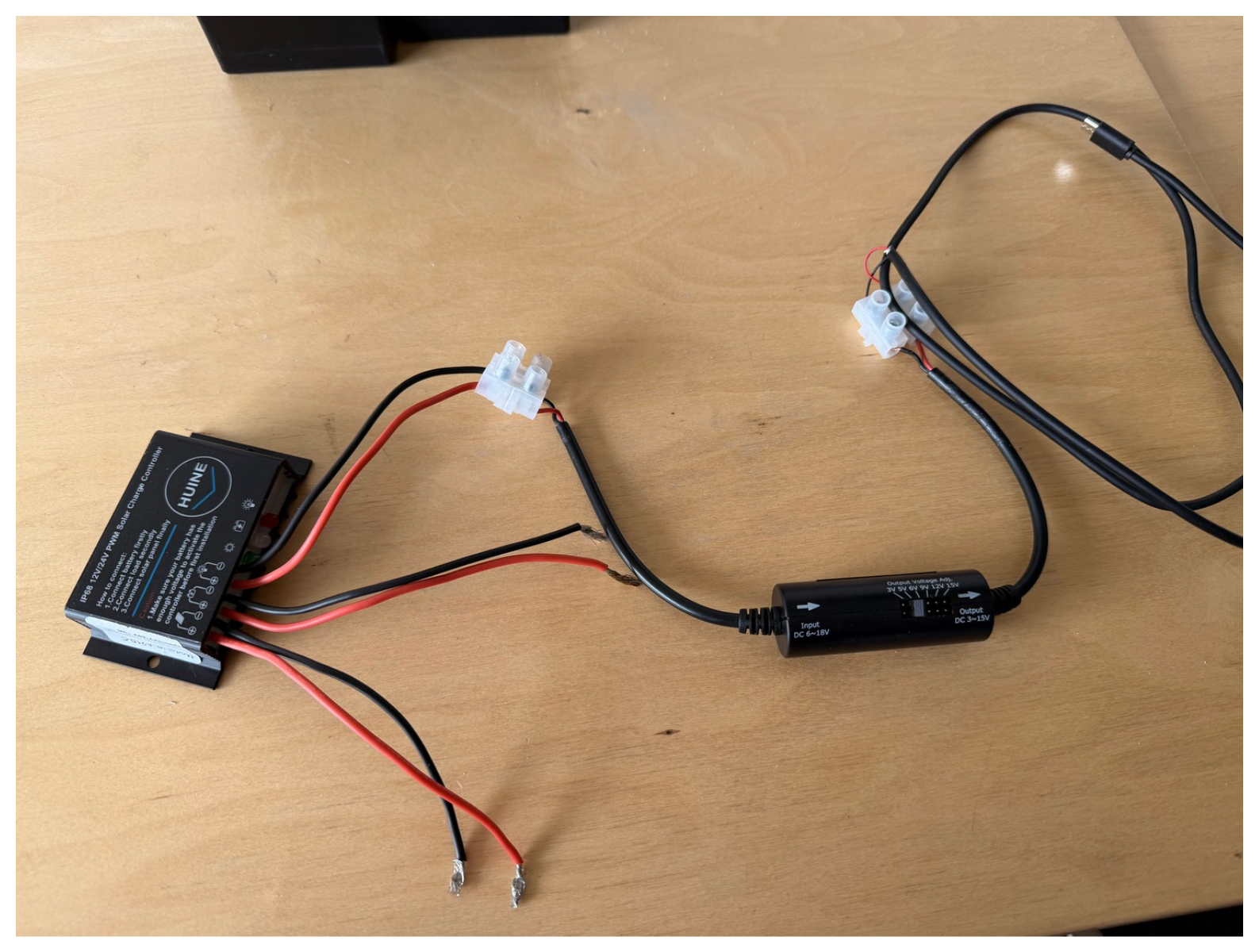
We will start by wiring the USB cable up to the multi-voltage adaptor. To do this cut the USB cable near the USB-A end Then strip about 10mm of insulation off the outer sheath of the cable to expose the inner wires. You should see four wires inside, red, black, white and green. Strip about 5mm of insulation off the red and black wires only, the white and green wires are not needed. Connect this to a screw terminal, on the other side of the screw terminal, connect to the output side of the multi-voltage adaptor.
On the multi-voltage adaptor make sure that the plastic jumper has 5V selected, as shown below in the photo.
Now connect the input side of the multi-voltage adaptor to the battery system. On the recommended solar controller the load terminals are to the right of the battery terminals.
4. Mounting the System
In this chapter we will guide you through the process of creating the electronics enclosure, mounting the solar panels and antenna mast.
Table of Contents
4.1. Prepare the Enclosure
You will need
Prepared Electronics on Breadboard
Waterproof Enclosure
Drill
Drill Bits
Grommets
First of all drill two holes through the side of the box for the power cable and the GNSS antenna cable. If using the grommets from the parts list you will need a 16mm drill bit. Once the holes are drilled insert the grommets into the holes, and pass the cables through the grommets. Then mount the breadboard inside the enclosure using double-sided tape or Velcro strips. Connect the power cable to the arduino board and the GNSS antenna to the GPS module. Finally close by screwing the lid onto the enclosure. Ensure when before you close the lid that the rubber seal on the clear lid is seated properly so that the enclosure is waterproof.
Now we need to prepare the power system enclosure. We used a small chilly bin as it is waterproof, insulated and easy to carry. Ensure it is big enough for the two batteries, and arduino enclosure. You will need to drill a hole for the solar panel wire and GNSS antenna cable to go through, again using a grommet to ensure it is waterproof. Finally put the prepared solar/battery system and arduino enclosure into the chilly bin, connect the power cable to the arduino, run the GNSS antenna cable out through the grommet on the side of the chilly bin and close the lid. We recommend to wrap everything in a warm blanket to help insulate the batteries and keep them warm.
4.2. Solar Panel Mounting
You will need
Solar Panel
Hinges
Screws
Drill
6x 2x4 timber
4x4 timber
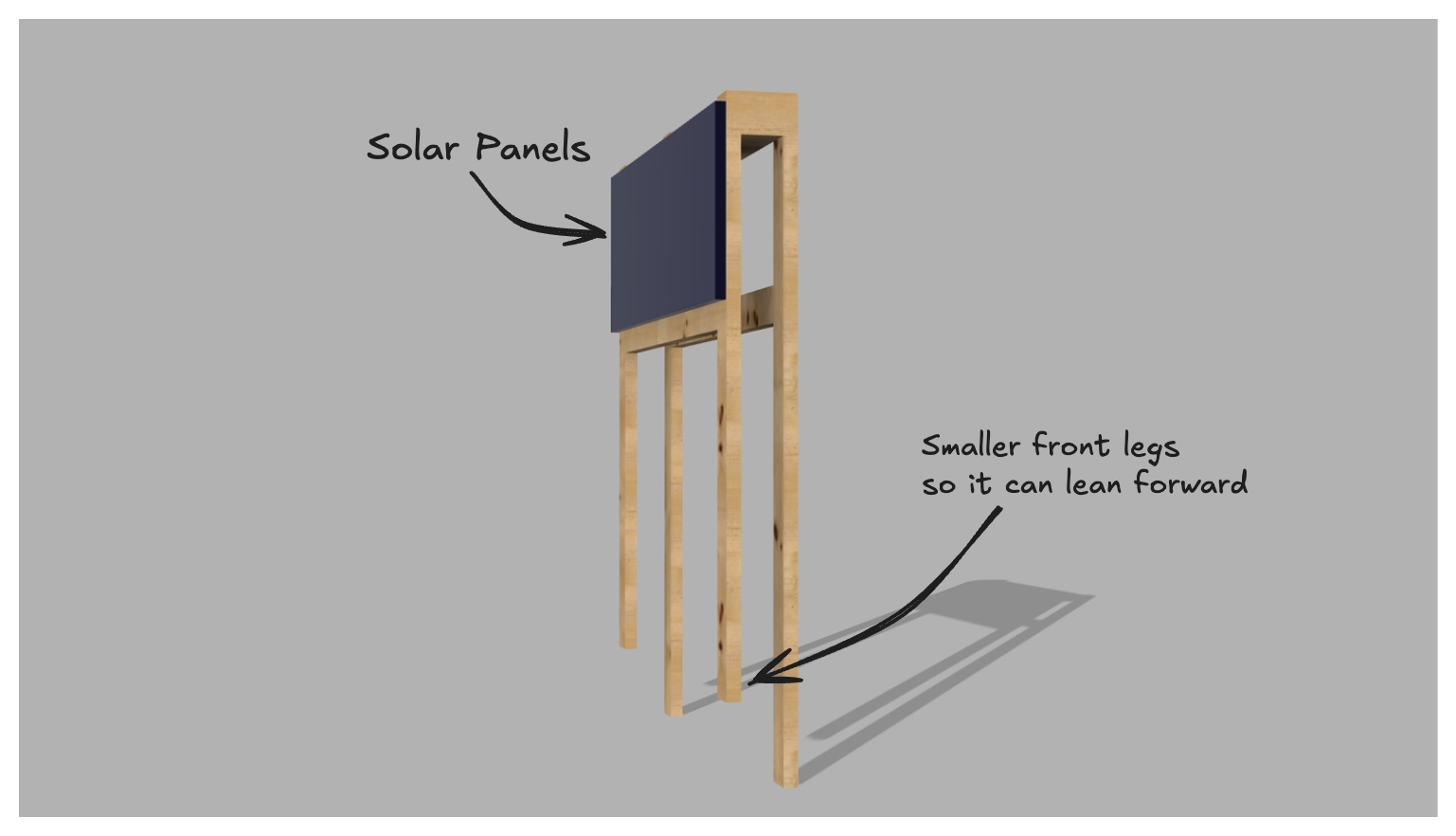
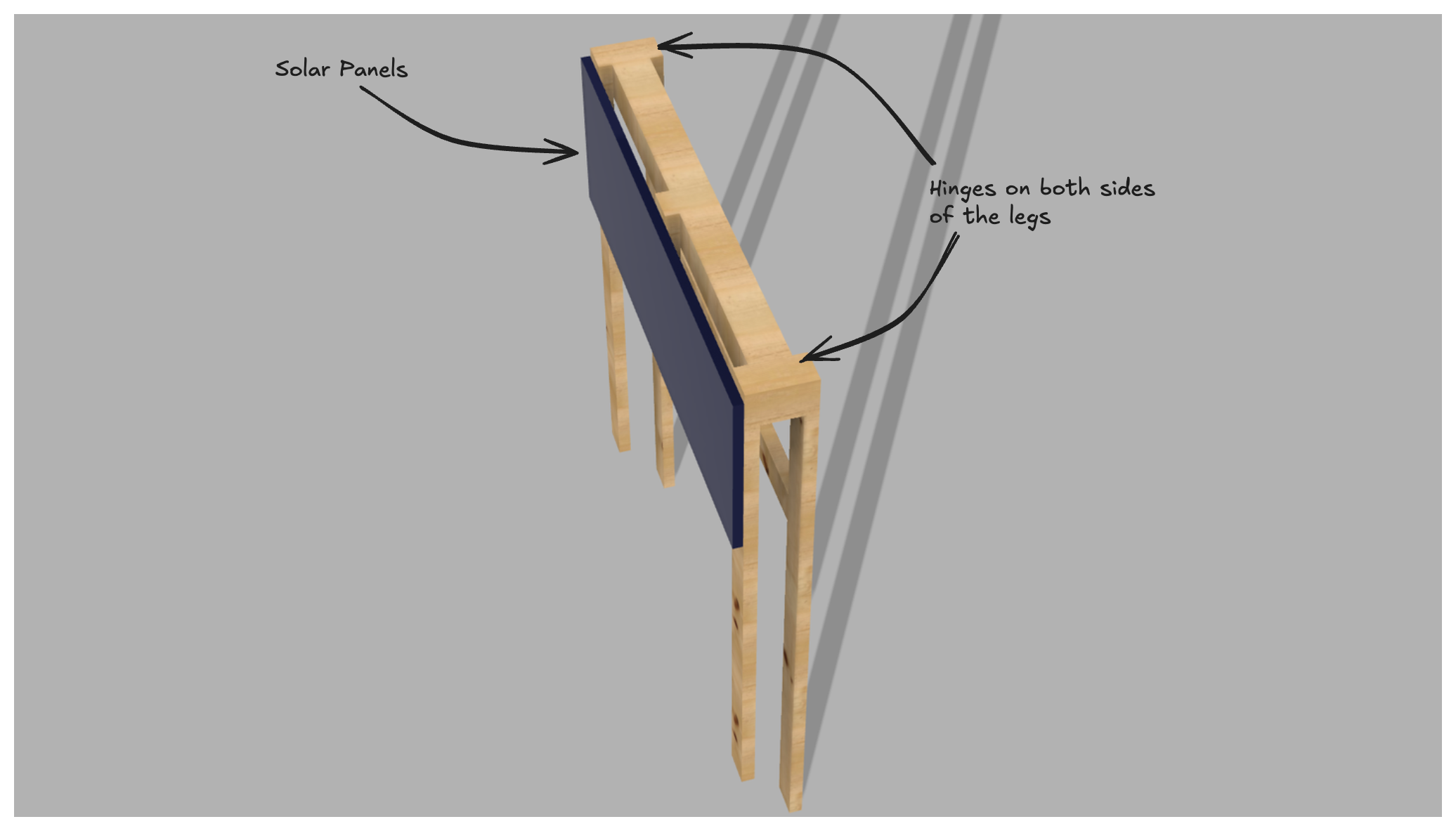
To mount the solar panel you will need to create a stand for them to go on. For our Deployment we created an A-frame style stand using 6 pieces of 2x4 timber and one 4x4. We used the 4x4 as the connector between the two legs at the top, where we screwed in hinges to allow the stand to fold flat for transport. We then used zip ties to secure the solar panels to the stand. We also made the front legs of the stand shorter than the back legs to give the solar panels tilt upwards.
4.3. Mount the GNSS Antenna
You will need
GNSS Antenna with Cable
Antenna Mast
Antenna Mast Mount (Optional)
Once again this is upto your deployment for the best way of doing this. For our deployment we had some students build a custom mast stand out of metal. However, you can also buy one online. We have one linked in our parts list.
Once you have the mast you will need to mount the antenna to the top of the mast. We did this using zip ties and duct tape. If your mast has guide wires make sure to install these before mounting the antenna. Ensure they are tight and secure so that the mast does not sway in the wind. The easiest way to do this is use some heavy-duty stakes.
5. Testing the System
In this section we show you what the activity LEDs should look like, how to check the serial monitor, and what the data files look like.
Table of Contents
5.1. Activity LEDs
There is a green LED on the Arduino that will flash every 5 seconds to indicate when data is being written to the SD card. There is also a red LED on the GPS module, this should be constantly on when the GPS module is powered on to indicate power, it also has a blue LED that will flash when the GPS module has a fix on the satellites. This can take a few minutes, and may not work if the GPS module is indoors or in a place with poor satellite visibility.
5.2. Serial Monitor
You can also check that the NMEA sentences look correct and are being received by the Arduino by opening the serial monitor. To do this follow the steps for plugging the Arduino into the computer from 1.7. Uploading the Firmware. Then click the magnifying glass icon in the top right of the Arduino IDE to open the serial monitor, the baud rate should be set to 9600. You should see the NMEA sentences being printed to the serial monitor every 5 seconds.
If you have the #define DEBUG enabled in the main.cpp file you will also see debug messages such as the GPS timestamp and file name.
5.3. Data Files
The files that are saved to the SD card will have an .LOG extension. The file names will look like the files below
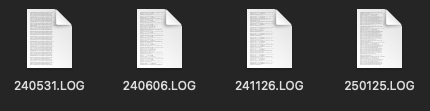
Where the first two digits are the year, the second two digits are the month, and the last two digits are the day. This date is in UTC.
The data in the file should look like the below example.